JetBrains
Install the Hull Code plugin for IntelliJ IDEA and other JetBrains IDEs.
The Hull Code plugin brings Hull's agents into JetBrains IDEs with a native interface. It works in IntelliJ IDEA and other IDEs built on the IntelliJ Platform, such as WebStorm, PyCharm, GoLand, PhpStorm, Rider, CLion, RubyMine and DataGrip. It also works with JetBrains remote development.
The plugin needs IDE version 2026.1 or later. You don't need Node.js or a separate Hull CLI install: the plugin downloads the matching Hull runtime the first time it connects.
Install
- Open Settings > Plugins.
- On the Marketplace tab, search for Hull Code.
- Click Install, then restart the IDE if asked.
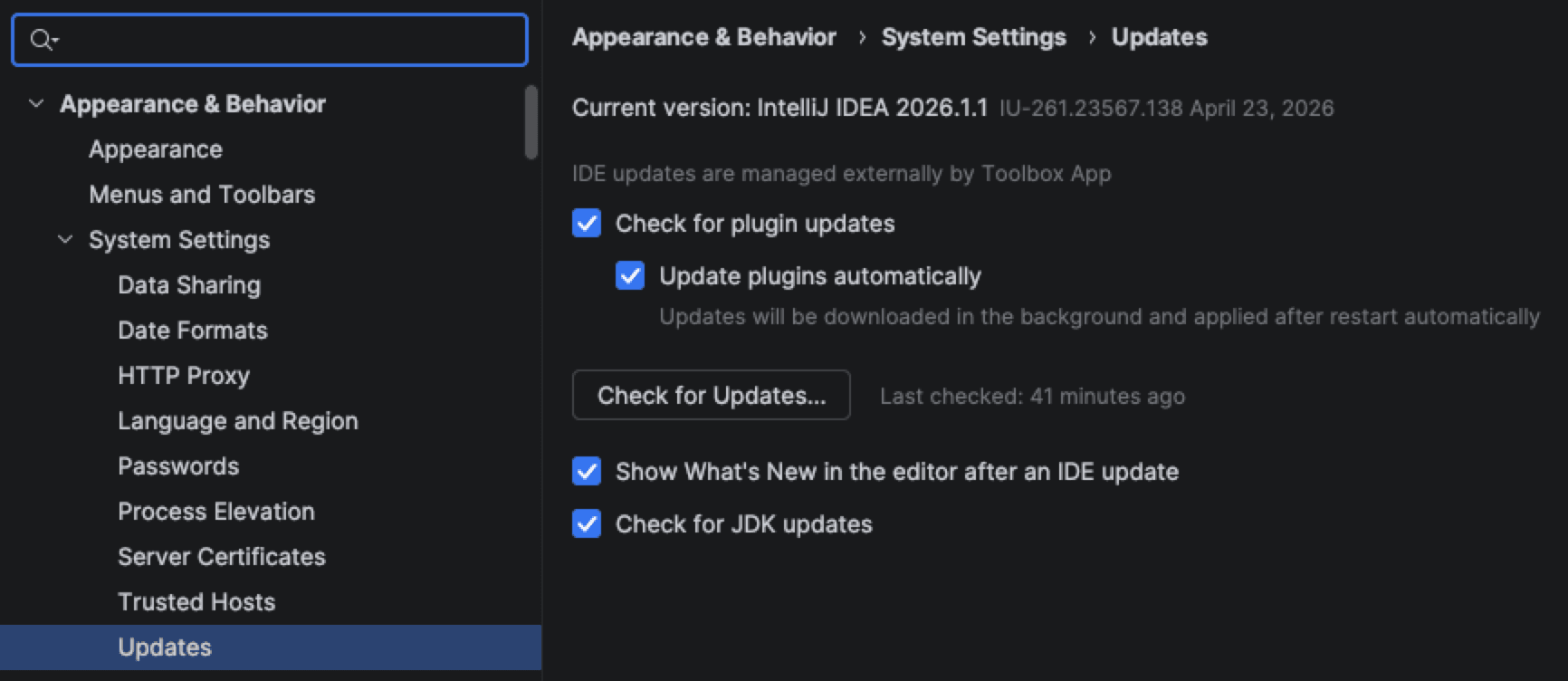
- Recommended: open Settings > Appearance & Behavior > System Settings > Updates and turn on Update plugins automatically.
If you used the early access build, remove its URL from Settings > Plugins > Manage Plugin Repositories. Otherwise your IDE may keep installing early access updates.
Use the plugin
Open the Hull Code tool window to start. The toolbar has New Session, History and Settings.
| Action | Shortcut |
|---|---|
| Send the prompt | Enter, or Cmd+Enter (macOS) / Ctrl+Enter |
| Stop the session | Alt+S |
Use the auto-approve button under the prompt to let Hull run actions without asking. See Permissions for finer control.
Settings
Open Settings > Tools > Hull Code:
| Page | What you set there |
|---|---|
| User Profile | Your Hull account |
| Models | Default models |
| Providers | Hull Gateway, your own keys and custom OpenAI-compatible providers |
| Agent Behavior | Agents, MCP servers, skills, workflows and rules |
| Auto-Approve | Which actions run without asking |
| Context | Compaction, editor context and file watcher ignore patterns |
| Advanced | Logging and diagnostic logs |
These settings are stored in the same hull.json files that the Hull CLI, Hull Desktop and the VS Code extension use. To edit them directly, use the settings menu in the tool window: Config Files > Open: local or Open: global.
The same menu has a Core submenu to restart or reinstall the Hull runtime and see its version, and Re-run v5 settings migration if you're moving from an older version of the plugin.
The plugin uses your IDE's proxy and certificate settings when it downloads the runtime and talks to model providers.
Troubleshooting
See Troubleshooting to collect logs. If the plugin can't connect, use Core > Restart from the settings menu, or Core > Reinstall to download the runtime again.