Chat
Give Hull a task in plain language, steer it while it works, and manage your sessions.
You work with Hull by describing what you want in plain language. Hull reads your code, makes changes, runs commands and reports back. You approve what it does and steer it as it goes.
Just want inline completions?
If you're typing code and want Hull to finish the line, use Autocomplete in VS Code. Chat is for tasks, questions and changes across files.
Open chat
Start a session with New session (⌘ N), pick a project, and type in the composer. See Your first session.
Write a good request
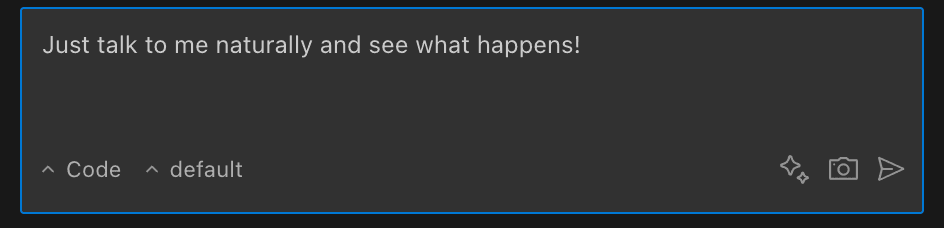
Describe the outcome you want. Hull finds the relevant code on its own, so focus on what rather than where.
- Be specific. "Fix the bug in
calculateTotalthat returns the wrong total for discounted items" beats "fix the code". - Point at files when you know them. Type
@to mention a file. See Context and mentions. - One task at a time. Split unrelated work into separate requests or sessions.
- Show the shape you want. An example of the output, style or format helps.
- Pick the right agent. Use Plan to agree on an approach first, or Ask for questions that shouldn't change anything. See Agents.
While Hull works
- Approvals. When Hull wants to run a command or edit a file that your permissions don't already allow, it asks. Approve once, always allow, or decline.
- Questions. If Hull needs a decision, it asks with suggested answers. Pick one or type your own.
- Task lists. For multi-step work Hull keeps a task list so you can see what's done and what's next.
- Undo. Every turn that changes files can be reverted. See Checkpoints.
- Diagrams. In VS Code, fenced
mermaidblocks in replies render as diagrams once the message finishes.
Manage sessions
Sessions are listed in the sidebar by project. Right-click one to rename, pin, archive or delete it. See Interface tour.